How I Recovered Data from an SD Card Using Disk Drill for Mac
I have been using the same 1080p dashcam for about five years. It is an older model, so most of its controls are on the camera itself: I can play recordings on its screen, delete clips and otherwise leave it recording until new video replaces the oldest files.
That last part caught me out. By the time I brought the microSD card home and connected it to my Mac mini, a recording I wanted to keep was no longer visible.
I needed to find out whether the video data was genuinely gone or merely no longer listed by the card’s filesystem.
Stop using the SD card first
The most important step is the least exciting one: stop recording to the card.
Deleting a file usually makes its storage available for reuse. Every new dashcam recording can overwrite some or all of the old video. Disk Drill gives the same advice in its recovery guide: avoid writing anything else to the affected device before scanning it.
I removed the card from the dashcam and did not save recovered files back onto it. Recovery software should write restored files to a different disk.
Why an SD card can still contain deleted files
Dashcams commonly use FAT32 or exFAT. These filesystems track files through directory records and allocated clusters. In FAT, a deleted directory entry becomes available for reuse; in exFAT, the directory entry’s InUse bit and the allocation bitmap track whether records and clusters are available.
That distinction matters: making storage available is not the same as immediately wiping every byte of the old video. Recovery may remain possible until newer recordings reuse those clusters.
There are no guarantees, though. A recovered video can be incomplete or corrupt if only part of its former storage survives. Fragmentation can make recovery harder too.
This is different from recovering a file deleted from a modern Mac’s internal SSD. APFS, encryption, snapshots and SSD behaviour make that a separate problem. If the missing file originally lived on the Mac, I would check Trash and Time Machine before reaching for low-level recovery software.
Scan the card with Disk Drill for Mac
I remembered using Disk Drill roughly ten years ago after a particularly unpleasant RAID 5 failure. It had helped me inspect the filesystems left across the surviving disks, so I downloaded the current Mac version and tried it on the dashcam card.
The workflow was straightforward:
- Connect the SD card to the Mac.
- Select the complete card in Disk Drill.
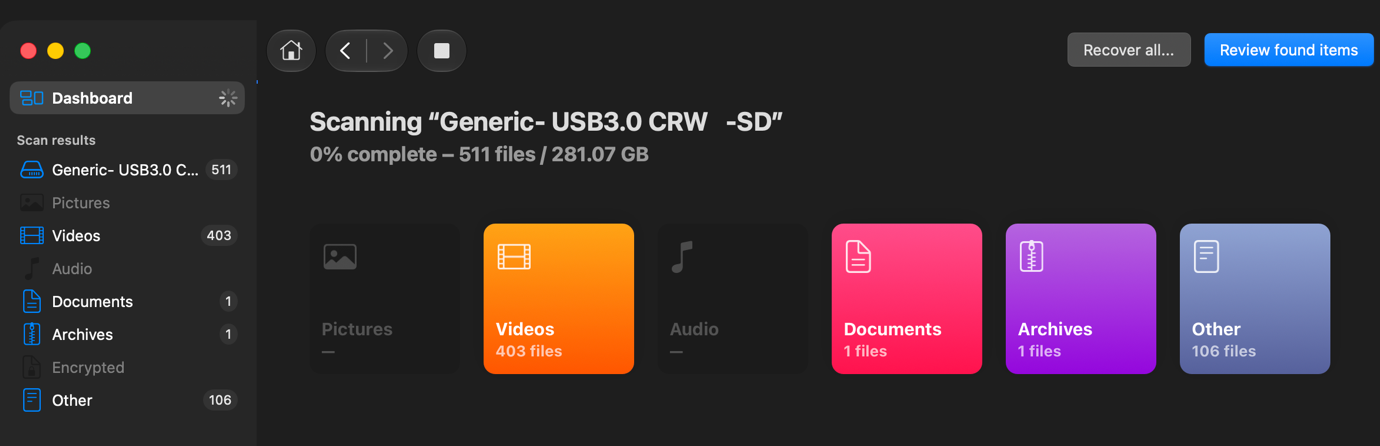
- Start Search for lost data and let the scan finish.
- Open Review found items and filter the results to video files.
- Preview likely candidates, then recover selected files to a different drive.
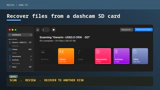
Disk Drill now offers both a general scan and an Advanced Camera Scan mode intended for cameras and SD or microSD cards. The screenshots here show the scan from my own card through a generic USB 3.0 reader.
Review the videos and recovery chances
After the scan, I filtered the results to videos. Disk Drill showed the filename, modification date, size and an estimated recovery chance for each file.
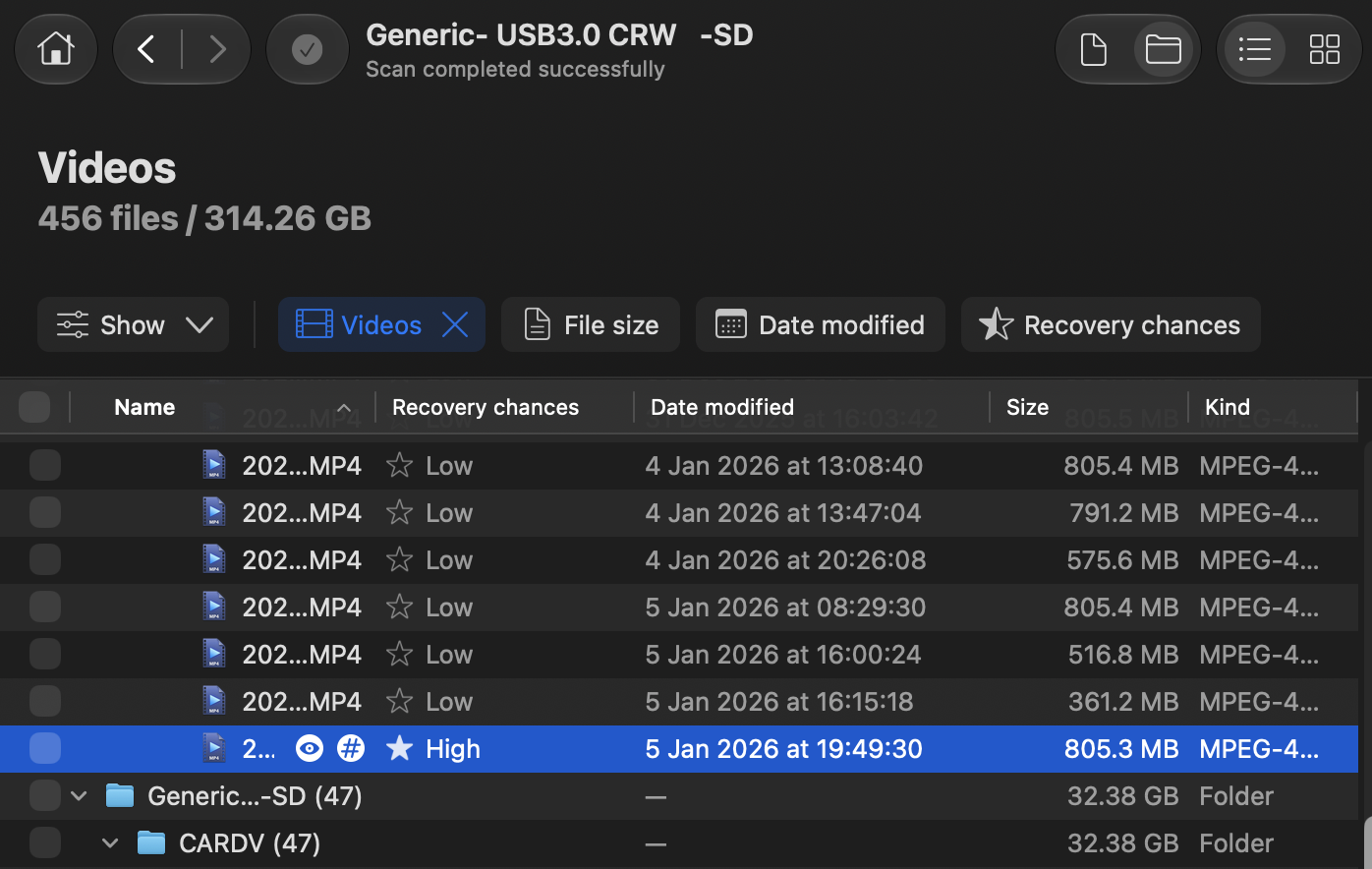
In my few recovery sessions with this card, the indication was useful: files marked Low were poor candidates, while High gave me somewhere sensible to start. Disk Drill says the estimate is based on whether file contents appear intact or have been overwritten, but it also stresses that the rating is only an estimate.
Previewing matters more than the star alone. A recognizable filename or a High rating does not prove that a long video plays cleanly from beginning to end. I previewed candidates before choosing what to recover.
Recover to another disk
Once I found the files worth trying, I recovered them to storage on the Mac rather than back to the microSD card. Writing the result onto the source card could overwrite another deleted file that had not yet been recovered.
This is also why I avoided experimenting with formatting or repair tools first. The immediate goal was to preserve what remained, not to make the card tidy.
Was Disk Drill worth paying for?
For me, yes. I needed to investigate the card quickly, and paying for a specialist tool was more sensible than spending the evening assembling a recovery workflow from several utilities.
The scan and preview are useful before buying because they show whether the software can see plausible candidates. Current Disk Drill licensing also covers both macOS and Windows under one licence, although pricing and terms can change, so check the current product page before purchasing.
This was one recovery attempt on one dashcam card, not a guarantee that every deleted recording can be restored. The result depends heavily on how much the dashcam wrote after deletion. The earlier you stop using the card, the better the odds.