How to Prune Docker Logs Safely and Enable Log Rotation
I was investigating disk usage on a Raspberry Pi when I found that Docker was consuming tens of gigabytes. The obvious suspect was old images, but the real problem was container logs.
That distinction matters. Docker images are read-only layers; the growing files are normally produced by a container’s logging driver. docker image prune and docker system prune are therefore the wrong tools for an active container whose log keeps growing.
This guide shows how to identify the container, inspect only the recent messages, recover space when necessary, and configure log rotation so the problem does not return.
If you only need to read, follow, or filter a container’s output, start with Reviewing Docker Logs. This article deals specifically with disk usage, retention, and rotation.
Check the filesystem first
Confirm which filesystem is running short of space:
greys@ubuntu $ df -hdocker system df is still useful for reviewing images, containers, volumes, and build cache:
greys@ubuntu $ docker system dfHowever, Docker’s container-size figures do not include logging-driver files. A container can therefore appear small while its host-side log occupies many gigabytes.
Check the active logging driver
Show the daemon’s default logging driver:
greys@ubuntu $ docker info --format '{{.LoggingDriver}}'Docker Engine uses the json-file driver by default unless it has been changed. Check the actual configuration of a specific container as well:
greys@ubuntu $ docker inspect --format '{{json .HostConfig.LogConfig}}' <container>A container keeps the logging configuration it received when it was created. Changing the daemon default does not silently update existing containers.
Find the largest container logs
Docker exposes each container’s active log path through docker inspect:
greys@ubuntu $ docker inspect --format '{{.LogPath}}' <container>The quickest first pass on a standard Linux Docker Engine installation is:
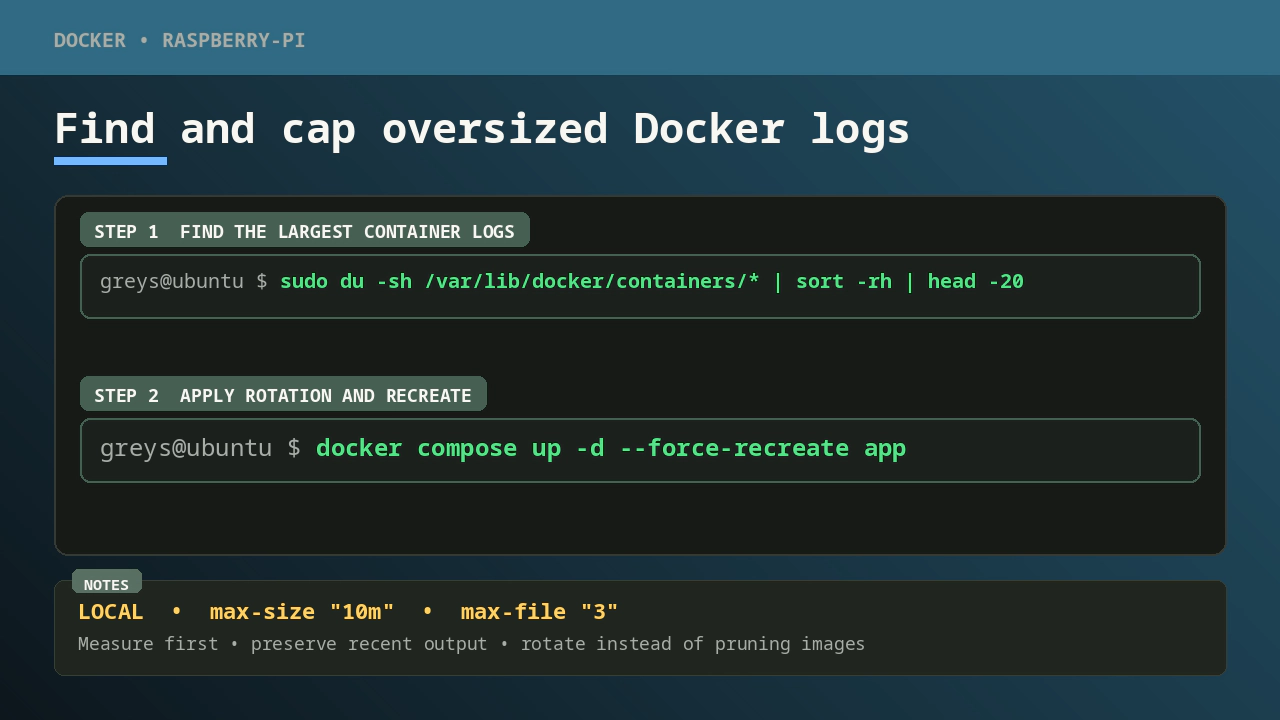
greys@ubuntu $ sudo du -sh /var/lib/docker/containers/* | sort -rh | head -20This puts the largest container directories first. The directory name is the full container ID, which you can match against docker ps -a --no-trunc.
A more useful inventory reports the total log-directory size alongside the container name, logging driver, and active log path:
greys@ubuntu $ for id in $(docker ps -aq); do \
  path=$(docker inspect --format '{{.LogPath}}' "$id"); \
  [ -n "$path" ] || continue; \
  bytes=$(sudo du -sb "$(dirname "$path")" 2>/dev/null | cut -f1); \
  name=$(docker inspect --format '{{.Name}}' "$id"); \
  driver=$(docker inspect --format '{{.HostConfig.LogConfig.Type}}' "$id"); \
  printf '%s\t%s\t%s\t%s\n' "${bytes:-0}" "${name#/}" "$driver" "$path"; \
done | sort -nr | head -20 | numfmt --field=1 --to=iec
34G   zigbee2mqtt             json-file  .../a76c072ba297...-json.log
1.5G  homeassistant-2026-02  json-file  .../c646588d353a...-json.log
1.4M  condescending_curie    json-file  .../3060ff1c2873...-json.log
41K   objective_khayyam      json-file  .../ed49a2a3be39...-json.log
19K   priceless_cerf         json-file  .../1519c6b2d444...-json.log
17K   elastic_lalande        json-file  .../23e298aadcd7...-json.log
16K   laughing_wozniak       json-file  .../d0e36720bf4a...-json.log
9.5K  silly_grothendieck     json-file  .../494dfcd9d850...-json.log
9.0K  reverent_sinoussi      json-file  .../b3900ed06173...-json.log
8.1K  stupefied_brown        json-file  .../7eeb48eb1e52...-json.log
6.8K  traefik                json-file  .../66585dfcfe0c...-json.log
6.8K  inspiring_blackwell    json-file  .../b9d7f271f291...-json.log
5.3K  compassionate_banzai   json-file  .../fb55351da24c...-json.log
This is sanitized output from a real host: project-specific container names were removed and the container IDs and paths were shortened for readability. The first column is the total size, followed by the container name, logging driver, and log path. Measuring the directory rather than only .LogPath also catches rotated log segments. With json-file, the same directory contains a small amount of container metadata, but multi-gigabyte entries are still obvious offenders.
The command uses docker ps -aq, so stopped containers are included too. Remove the -a if you only want running containers.
The Docker data root can be somewhere other than /var/lib/docker. Confirm it when necessary:
greys@ubuntu $ docker info --format '{{.DockerRootDir}}'Use that path instead of /var/lib/docker in the quick command. The named inventory does not assume a data-root location because it gets each active path from Docker.
Do not edit files under Docker’s data root casually. Docker documents these log files as daemon-managed storage; direct manipulation while Docker is writing to them can cause unexpected behaviour. Read-only size checks are useful for diagnosis, but rotation should be configured through Docker.
Display only the last few hundred lines
--tail limits what Docker prints; it does not shrink the stored log:
greys@ubuntu $ docker logs --tail 300 <container>Add timestamps when diagnosing a noisy service:
greys@ubuntu $ docker logs --timestamps --tail 300 <container>Or limit the output by time:
greys@ubuntu $ docker logs --since 2h <container>These commands are safe ways to inspect recent messages, but they do not reclaim disk space.
The safest cleanup: rotate and recreate the container
Docker logging options belong to the container configuration. For a Compose-managed service, add a bounded logging policy:
services:
  app:
    image: example/app:latest
    logging:
      driver: local
      options:
        max-size: "10m"
        max-file: "3"
The local driver is Docker’s recommended default for ordinary installations because it rotates logs automatically and uses a disk-efficient format with compression enabled by default.
Recreate the affected service so the new logging configuration takes effect:
greys@ubuntu $ docker compose up -d --force-recreate appRecreating a container removes its old daemon-managed log. Named volumes and bind mounts remain separate, but check the Compose configuration before recreating anything that stores important data inside the container’s writable layer.
If an application specifically requires json-file, keep that driver and enable rotation explicitly:
services:
  app:
    image: example/app:latest
    logging:
      driver: json-file
      options:
        max-size: "10m"
        max-file: "3"
Without max-size, the default json-file log is unlimited. max-file only has an effect when max-size is also set.
Configure a safe default for new containers
For a small Linux host such as a Raspberry Pi, I prefer making bounded logs the daemon default. Create or merge the following settings into /etc/docker/daemon.json:
{
  "log-driver": "local",
  "log-opts": {
    "max-size": "10m",
    "max-file": "3"
  }
}
Do not overwrite an existing daemon.json without preserving its other settings. Validate the complete file before restarting Docker:
greys@ubuntu $ sudo dockerd --validate \
                   --config-file=/etc/docker/daemon.json
configuration OK
Then restart the daemon:
greys@ubuntu $ sudo systemctl restart dockerA Docker daemon restart normally interrupts running containers unless live restore is enabled. Check each container’s restart policy and schedule the change appropriately; do not assume every workload will return automatically.
This default applies only to containers created afterwards. Recreate existing Compose services to give them the new driver and limits.
To retain JSON logs globally instead, use:
{
  "log-driver": "json-file",
  "log-opts": {
    "max-size": "10m",
    "max-file": "3"
  }
}
All log-opts values in daemon.json must be strings, including max-file.
Emergency recovery on a completely full disk
If the disk is already full and there is not enough working space to recreate the container, preserve the recent messages only if you have another writable filesystem or a trusted remote destination. For example, with a mounted USB drive at /mnt/usb:
greys@ubuntu $ umask 077
greys@ubuntu $ recovery_file=/mnt/usb/docker-log-last-300.txt
greys@ubuntu $ docker logs --tail 300 <container> \
                   > "$recovery_file" 2>&1
2>&1 captures both the container’s standard output and standard error. Container logs can contain credentials, tokens, personal data, or other sensitive material, so use a trusted destination, keep the restrictive permissions, and delete the recovery file when it is no longer needed.
Do not point the recovery file at $HOME when the filesystem containing it is full. If no other destination is available, either free space somewhere else first or accept that the old log cannot be preserved before emergency cleanup.
Docker has no supported command that rewrites its managed log to retain exactly the last 300 lines. --tail 300 controls output, not retention.
As a last-resort recovery for a json-file container, record the log path, stop the container, and truncate the inactive file:
greys@ubuntu $ log_path=$(docker inspect --format '{{.LogPath}}' <container>)
greys@ubuntu $ docker stop <container>
greys@ubuntu $ sudo truncate --size 0 "$log_path"
greys@ubuntu $ docker start <container>
This erases the stored Docker log; it does not keep the last 300 lines inside docker logs. If you created one, the external recovery file is your copy. Direct truncation is an emergency measure, not routine maintenance, because Docker warns against modifying logging-driver files with external tools.
After recovering space, configure rotation and recreate the container properly.
Verify the fix
Confirm the recreated container’s logging settings:
greys@ubuntu $ docker inspect --format '{{json .HostConfig.LogConfig}}' <container>Then confirm that disk use has fallen and remains bounded:
greys@ubuntu $ df -h
greys@ubuntu $ sudo du -sh /var/lib/docker/containers/* | sort -h
If the log immediately grows again, fix the noisy application too. Rotation protects the host, but an endless error loop still wastes I/O, obscures useful messages, and can shorten the life of flash storage.
What I found in my existing configuration
I had already used the same pattern in one of my Compose files:
logging:
  driver: json-file
  options:
    max-size: "10mb"
    max-file: "1"
That explains why the solution felt familiar even though I could not find a Unix Tutorial article about it. The existing Reviewing Docker Logs post covers reading and filtering logs, but not disk usage or rotation.
For new configuration I would use Docker’s documented 10m form and retain several rotated files unless the Raspberry Pi is extremely constrained.