pgrep – find a process ID by name
The pgrep command finds running processes by name and prints their process IDs. A process ID, usually shortened to PID, is the number the operating system uses to identify a running program.
pgrep is available on both Linux and macOS. The basic command works the same way on both systems.[1][2]
Find a process by name
Type pgrep followed by the process name:
pgrep zsh
This searches for running processes named zsh.
On a system used by several people, you may get several results. Use -u followed by an account name when you only want that user’s processes.
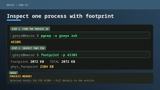
Here is real output from a macOS account named river:
$ pgrep -u river zsh
45305
The result, 45305, is the PID of the matching zsh process.
You can now type that number into another command. This example uses the macOS footprint command to inspect the process’s memory:
footprint -p 45305
The footprint tutorial shows the complete output.
Why pgrep may print more than one PID
Several running processes can have the same name. In that case, pgrep prints each matching PID on a separate line.
Here is real output from a Linux system with two systemd processes:
$ pgrep -x systemd
1
22530
Both numbers are valid PIDs.
Match the exact process name
By default, pgrep can match a name that contains your search text. Add -x when you want the complete process name to match exactly:[1][2]
pgrep -x systemd
This avoids matching a different process whose name merely contains systemd.
Show the process name too
Add -l to print each PID and process name together:[1][2]
$ pgrep -l -x systemd
1 systemd
22530 systemd
This is useful when pgrep returns several results and you want to confirm what it found.
What if pgrep prints nothing?
No output usually means that no running process matched the name. Check the spelling and capitalization, then make sure the application or service is running.
pgrep and pkill are different commands
pgrep prints matching PIDs. It does not stop the processes.
pkill uses similar matching rules but sends a signal to matching processes. Be careful not to confuse the two commands.[1][2]
See also
References
[1] https://man7.org/linux/man-pages/man1/pgrep.1.html — pgrep(1) Linux manual page [2] https://keith.github.io/xcode-man-pages/pgrep.1.html — pgrep(1) macOS manual page