date – display or set the system date and time
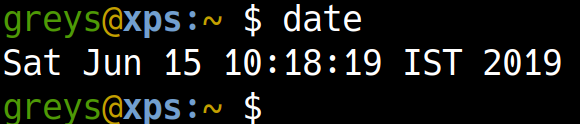
date displays or sets the system date and time. Essential for timestamps in scripts and log analysis.
Synopsis
date [OPTIONS] [+FORMAT]
date [OPTIONS] STRING
Format Specifiers
| Specifier | Output |
|---|---|
%Y | Year (2025) |
%m | Month (01-12) |
%d | Day of month (01-31) |
%H | Hour 24h (00-23) |
%M | Minute (00-59) |
%S | Second (00-59) |
%A | Weekday name (Monday) |
%B | Month name (January) |
%Z | Timezone (UTC) |
%s | Unix timestamp |
Examples
Default output
$ date
Wed Jan 29 18:30:00 GMT 2025
Custom format
$ date "+%Y-%m-%d"
2025-01-29

$ date "+%Y-%m-%d %H:%M:%S"
2025-01-29 18:30:00

$ date "+%A, %B %d, %Y"
Wednesday, January 29, 2025
Unix timestamp
$ date +%s
1706550600

# Convert timestamp to date
$ date -d @1706550600
Wed Jan 29 18:30:00 GMT 2025
Relative dates (GNU date)
$ date -d "yesterday"
$ date -d "last week"
$ date -d "2 days ago"
$ date -d "next Monday"
$ date -d "+3 hours"
UTC time
$ date -u
$ date -u "+%Y-%m-%d %H:%M:%S UTC"
Different timezone
$ TZ="America/New_York" date
$ TZ="Asia/Tokyo" date
Common Patterns
ISO 8601 format
$ date -Iseconds
2025-01-29T18:30:00+00:00

$ date "+%Y-%m-%dT%H:%M:%S%z"
Filename timestamp
$ date "+%Y%m%d"
20250129

$ date "+%Y%m%d_%H%M%S"
20250129_183000
Log timestamp
$ echo "[$(date '+%Y-%m-%d %H:%M:%S')] Event occurred"
[2025-01-29 18:30:00] Event occurred
Backup with date
$ cp file.txt "file.txt.$(date +%Y%m%d)"
$ tar -czf "backup-$(date +%Y%m%d).tar.gz" /data
Set System Date (requires root)
# Set date
$ sudo date -s "2025-01-29 18:30:00"

# Sync with NTP
$ sudo timedatectl set-ntp true
Tips
- Use timedatectl: Modern way to manage time on systemd systems
- Check timezone:
timedatectlorcat /etc/timezone - macOS differs: Uses
-jinstead of-dfor date parsing
See Also
Related Commands
- cal — Display calendar
- timedatectl — Control system time
- hwclock — Hardware clock